How to Translate Text in Images: The Complete Expert Walkthrough
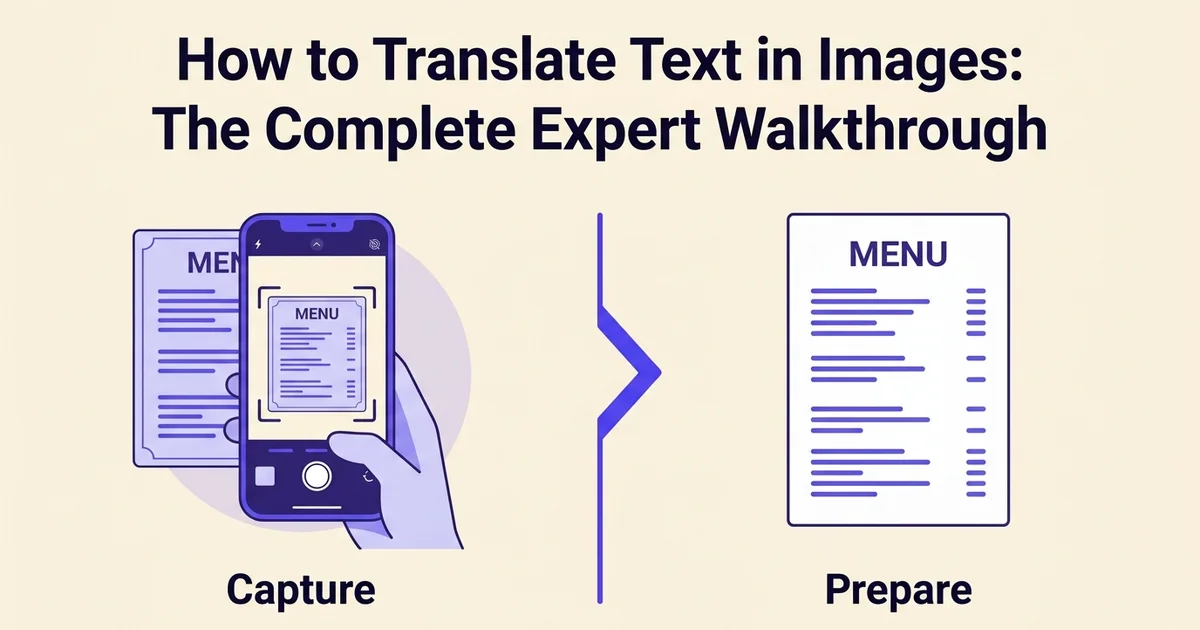
- A device with internet connection (smartphone, tablet, or computer)
- An image file in JPEG or PNG format or ability to take a photo
- Basic familiarity with your device's camera or file upload features
Introduction: why image translation matters
Translating text embedded in images lets you understand foreign-language content instantly, without the tedious work of retyping every word manually. Whether you're decoding a restaurant menu abroad, processing a scanned contract, or localizing visual content for a global audience, image translation removes the friction between you and the information you need.
The market tells the story
At DocuGlot, our analysis shows that demand for AI-powered translation tools has accelerated sharply in recent years. According to Reel Mind (2025), the AI translation market is valued at USD 8.6 billion in 2025, with the image-to-text translation segment growing at an impressive 18.4% CAGR. These numbers reflect a genuine shift in how people interact with multilingual content every day.
Who needs to translate images
The use cases span a wide range of professionals and everyday users:
- Travelers encountering signage, menus, and documents in unfamiliar languages
- Business professionals handling scanned contracts, invoices, or foreign-language reports
- Content creators localizing graphics, slides, and visual assets for international audiences
- General users sharing or consuming image-based content across language barriers
This guide walks you through every step of the process, using practical tools and proven techniques to get accurate results fast. 🌍
What you'll need: prerequisites and preparation
Before diving into the steps, gather everything you need to translate image content accurately and efficiently. Having the right setup in place saves time and reduces errors later in the process.
Device and connectivity
Any internet-connected device works: a smartphone, tablet, or desktop computer. Most tools, including DocuGlot, run entirely in the browser with no software installation required.
Image file requirements
Prepare your image in JPEG or PNG format. These are the most widely supported formats. According to Reelmind AI, modern AI-powered OCR (optical character recognition, the technology that reads text from images) accuracy now exceeds 95%, but that figure depends on image clarity and resolution.
Language settings
- Source language: identify it in advance, or use auto-detection if available
- Target language: know which language you need the output in before you start
Optional preparation tools
A basic photo editor or cropping tool helps if your image contains cluttered backgrounds or low-contrast text. Cleaner images consistently produce better translation results. You can also explore Google Translate image features as a quick reference point for comparison. 🖼️
Step 1: prepare your image for translation
Before any tool can translate image content accurately, the image itself needs to be in good shape. OCR (optical character recognition), the technology that reads text from images, is only as reliable as the source material you feed it. Spending two minutes preparing your image can dramatically improve the quality of your translation output.
Check image resolution and clarity
Ensure your image is at least 200 DPI (dots per inch) for optimal OCR performance. Blurry or low-resolution images will produce inaccurate translations. If possible, take a fresh photo or use a high-quality scan rather than a compressed or pixelated version.
Verify text is legible and well-lit
Make sure the text in your image is clearly visible with good contrast between the text and background. Avoid shadows, glare, or extreme angles that obscure the words. If photographing text, use natural or bright artificial lighting and position your camera perpendicular to the surface.
Crop to focus on the text area
Remove unnecessary background elements by cropping your image to include only the text you need translated. This reduces processing time and helps the OCR engine focus on the relevant content, improving accuracy.
Save in a supported format
Use JPEG or PNG format for your image file. These formats are widely supported by translation tools and maintain quality better than compressed alternatives. Avoid BMP or TIFF unless your tool specifically requires them.
Check text clarity and lighting
Open your image and examine the text closely. It should be:
- Sharp and in focus, not blurry or pixelated
- Well-lit, with no heavy shadows falling across words
- High contrast, meaning dark text on a light background (or vice versa)
According to Reel Mind, AI-powered OCR accuracy frequently exceeds 95% and can reach 99% in controlled scenarios. Poor lighting or low contrast is one of the fastest ways to fall below that threshold.
Crop to the text area
Isolate the text by cropping out unnecessary background elements. A tighter frame means the OCR engine spends less effort processing irrelevant visual data. Most built-in photo editors on Windows, macOS, or mobile devices handle this in seconds.
Verify resolution and file size
Aim for a resolution of at least 150 DPI (dots per inch), though 300 DPI is ideal for small or dense text. DocuGlot's Image Translator accepts JPEG and PNG files up to 500 MB, so most high-resolution images will upload without issue.
Fix rotation and obstructions
Rotate any tilted images to horizontal before uploading. Text at an angle, even slightly, can confuse OCR engines and produce garbled output. Also check that no part of the text is covered by a watermark, fold, or object.
What you should see at this stage: a clean, well-cropped image where every word is fully visible, evenly lit, and sitting straight on the page. 🖼️
Step 2: choose your translation method and tool
With a clean image ready, your next decision is which tool to use. The right choice depends on how many images you need to translate, whether you are working on a desktop or mobile device, and how much formatting accuracy matters for your final output.
Assess your volume and frequency needs
Determine whether you need to translate a single image or multiple images regularly. One-time translations may work fine with free online tools, while frequent use justifies investing in a dedicated service like DocuGlot's Image Translator.
Consider your device and workflow
Decide if you'll work primarily on desktop or mobile. Mobile apps offer convenience for on-the-go translation (like reading menus while traveling), while desktop tools often provide more advanced features and batch processing capabilities.
Evaluate accuracy requirements
For casual content like restaurant menus or street signs, basic translation tools suffice. For professional documents, contracts, or technical content, choose a tool with higher accuracy ratings and specialized language support.
Compare tool features and pricing
Review whether your chosen tool supports your language pair, offers batch processing, provides editing capabilities, and fits your budget. DocuGlot's Basic Plan, for example, includes approximately 99,834 words with no page-count limit.
Free options for quick, one-off translations
Google Translate handles basic image translation at no cost, either through its mobile app or its web interface. According to Wondershare PDF, you can upload an image directly in a desktop browser or point your phone camera at printed text for a live translation overlay. This camera mode, available on both iOS and Android, is particularly useful for travel scenarios where you need an instant read of a menu or sign, even without a data connection if you download the language pack in advance.
For a deeper look at how this works in practice, the Google image translate guide walks through every option in detail.
Specialized tools for professional and bulk use cases
Free tools trade speed for accuracy and almost always strip out your original formatting. If you are translating an image that contains structured content, such as a scanned product label, a slide, or a document page, a dedicated image translator preserves that layout far better.
DocuGlot's Image Translator accepts JPEG and PNG files up to 500 MB and returns a translated output that mirrors the original structure, covering 100+ languages with transparent, pay-per-document pricing. No subscription is required, which makes it practical for occasional professional use without ongoing commitment.
Choose your method before uploading: mobile camera for live, on-the-go reads; browser upload for single desktop images; DocuGlot for any image where layout and accuracy genuinely matter. 🎯
Step 3: upload or capture your image
With your tool selected, the next action is getting your image into the system. How you do this depends on whether you are working on a mobile device or a desktop, and each path has a slightly different set of considerations to get right before translation begins.
Choose upload or camera capture method
Most translation tools offer two options: uploading an existing image file from your device, or using your camera to capture text in real-time. Select the method that matches your workflow—upload for pre-existing images, camera capture for immediate translation of physical text.
Select your image file or take a photo
If uploading, navigate to your image file and select it. If using the camera feature, position your device so the text fills most of the frame, ensure adequate lighting, and tap to capture. Avoid movement or blur during capture.
Wait for the image to process
After uploading or capturing, the tool will extract text from the image using OCR technology. This typically takes a few seconds. Do not close the app or navigate away during processing.
Confirm the image loaded successfully
Verify that your image appears in the tool's preview window and that the OCR has detected text. If the image didn't load or text wasn't recognized, try re-uploading with a clearer image or better lighting.
On mobile: use the camera icon
Open the Google Translate app and tap the camera icon in the input bar. This launches the live viewfinder. Frame the text you want to translate clearly within the viewfinder boundaries, keeping the subject centred and steady. If this is your first time using the feature, the app will prompt you to grant camera permissions. Accept these to proceed.
Lighting matters more than most users expect. Aim for even, natural light and avoid shadows falling across the text. Poor lighting is the most common reason OCR (optical character recognition, the technology that reads text from images) produces garbled results.
On desktop: upload an image file
Navigate to Google Translate in your browser and click the image icon in the input field. Select your saved JPEG or PNG file from your device.
For documents where layout accuracy is critical, uploading directly to DocuGlot is the more reliable route. According to Wondershare, Google Translate can also detect the source language automatically once the image is processed, which is useful if you are working with unfamiliar scripts or need to translate Portuguese to English without manually identifying the language first.
You should see a preview of your uploaded image before any translation runs. Confirm the text is fully visible and not cropped. ✅
Step 4: select source and target languages
Once your image is loaded, configure your language settings before running the translation. This step directly affects output quality, so take a moment to verify both the source and target language selections rather than accepting defaults without checking.
Choosing the source language
Most tools offer automatic language detection as a default. In DocuGlot's Image Translator, the source language field will typically populate automatically after your image is processed. This works well for common scripts, but if you are working with a less familiar writing system, such as when you need to translate Google English to Myanmar, manually selecting the source language often produces more reliable results.

Selecting your target language
Open the target language dropdown and scroll or search for your desired language. DocuGlot supports 100+ languages, including many rare language pairs that other tools omit.
Verifying before you proceed
Confirm both selections before clicking translate. According to Wondershare, Google Translate detects source language automatically and lets users choose a target language, but accuracy varies depending on the language pair. Less common combinations may produce lower-quality output, so double-check your selections. ✅
Step 5: review and refine the translated text
Once your translation appears, resist the urge to copy it immediately. Take a moment to read through the output carefully. A quick review catches the most common issues before they cause problems downstream, especially for business documents, published content, or anything customer-facing.
Check for accuracy and context
Read the translated text against the original image. Confirm that the meaning holds up, not just the words. AI translation handles straightforward sentences well, but idiomatic phrases, technical terminology, or culturally specific references sometimes need a human eye. If you regularly work with languages like Mandarin, our guide on how to translate Chinese to English covers nuances worth knowing.
Spot OCR errors before they spread
According to Reelmind, AI-powered OCR accuracy frequently exceeds 95%, which is impressive but not perfect. Look for garbled characters, missing words, or broken numbers. These errors typically originate in the source text extraction, not the translation itself.
Assess formatting and layout preservation
DocuGlot preserves document structure during translation, so check that columns, line breaks, and text blocks still align with the original layout. Complex designs with overlapping elements or decorative fonts are the most likely to shift.
Flag low-confidence areas
Small print, stylized fonts, and low-resolution images produce lower OCR accuracy. For critical content, consider making manual corrections directly in the output before moving to the next step. ✅
Step 6: copy, save, or share your translation
Once your translation looks accurate and well-formatted, get it into the hands of the people who need it. DocuGlot gives you several practical output options depending on how you plan to use the result.
Copy translated text to clipboard
Select all translated text in the DocuGlot output panel and copy it directly to your clipboard. You can then paste it into any document, email, or messaging app immediately. This works well for quick lookups or sharing a short passage.
Save or export the translated file
DocuGlot returns your translation in the original file format, so a translated PNG comes back as a usable image file and a PDF stays a PDF. Download the output file directly from the results screen. If you need an editable version for further editing, export to DOCX format for full text control.
Share via email or document platforms
Forward the downloaded file as an email attachment, upload it to Google Drive, or drop it into a shared workspace. For multilingual teams handling content like Vietnamese materials, tools that support translate english to vietnamese workflows make handoffs significantly faster. 📤
Common mistakes to avoid
Even with the right tool in hand, a few predictable errors can undermine your results. Knowing what to watch for before you upload saves time and frustration later.
See how DocuGlot - Basic Plan handles translate image DocuGlot - Basic Plan.
Uploading blurry or low-resolution images
Translation accuracy depends directly on the clarity of the source image. Blurry photos, heavy compression artifacts, or low-resolution screenshots force the OCR engine (optical character recognition, the technology that reads text from images) to guess at characters. Crop tightly to the text area and use the highest resolution version available before uploading.
Skipping source language verification
Auto-detection is reliable most of the time, but it can misidentify short strings, mixed-language content, or less common scripts. Always confirm the detected language before running your translation, especially for documents like Arabic materials where script direction also matters. For guidance on specific language pairs, see our walkthrough on how to translate arabic to english.
Ignoring context during review
Words carry meaning that depends on surrounding sentences. Never accept a translation without reading it in full context, particularly for marketing copy, legal text, or technical documentation.
Expecting perfect formatting from complex layouts
According to Reelmind, images with multi-column layouts, overlapping graphics, or decorative fonts present significant challenges for automated tools. In our experience at DocuGlot, uploading a clean, well-cropped image and exporting to DOCX gives you the most editable, accurately structured output for complex documents. Plan for a light formatting pass after translation rather than assuming the layout will be pixel-perfect.
Why this method works
Image translation methods work by leveraging advanced neural networks that analyze visual content and convert text within images across languages. Understanding these mechanics helps you use translation tools more confidently, troubleshoot issues effectively, and achieve better results when converting multilingual visual content.
OCR and neural machine translation work together
Modern image translation pipelines combine two powerful technologies. Optical character recognition (OCR) extracts text from your image, and neural machine translation then processes that text with contextual awareness. According to Reelmind, AI-powered OCR accuracy frequently exceeds 95% and reaches 99% in controlled scenarios, meaning the translation engine receives clean, reliable input rather than garbled characters.
Auto-detection and cloud processing reduce friction
Auto-language detection removes a step that used to trip up many users: manually identifying the source language before translating. Cloud-based processing handles the heavy computational work remotely, which means even modest hardware can return high-quality results quickly.
Accessibility drives adoption
Free and low-cost tools have genuinely democratized image translation. The image-to-text translation segment is growing at 11.9% CAGR, reflecting how broadly useful this technology has become across industries. Platforms like DocuGlot extend this accessibility further by supporting 100+ languages with pay-per-document pricing, so occasional users are never locked into subscriptions they do not need.
Alternative methods for image translation
AI-powered tools handle most image translation tasks well, but some situations call for a different approach. Whether you are working with highly technical content, legally sensitive documents, or images embedded in web pages, knowing your options helps you choose the right method for the job.
Manual text extraction for layout-sensitive content
Extract text from your image first using an OCR tool, then paste it into a dedicated translation workflow. This two-step approach gives you more control over formatting. According to Reelmind, converting image content to an editable document format before translating preserves layout far more reliably than translating the image directly. If your extracted text becomes a DOCX or PDF, tools like DocuGlot can translate it while keeping your original structure intact.

Specialized OCR for technical content
Standard image translation tools sometimes struggle with scientific notation, engineering diagrams, or medical terminology. Dedicated OCR software trained on domain-specific text produces cleaner extractions before you pass content to a translator.
Browser extensions for web-based images
Extensions like Google Translate's browser plugin can translate images directly on web pages without downloading them first, making them ideal for quick, in-context reading.
Mobile apps for on-the-go translation
Apps designed for travel or business, including Google Translate's camera mode, let you point your phone at signage, menus, or printed materials and see translations overlaid in real time.
Professional services for critical documents
For contracts, compliance materials, or high-stakes business communications, human translators remain the gold standard where accuracy and legal accountability matter most.
Real-world examples: when to use image translation
Knowing when to translate an image is just as important as knowing how. Different situations call for different tools and levels of precision, from a quick glance at a menu to a formal contract review.
Restaurant menus and food labels abroad
Point your phone at a foreign menu or snap a photo of product packaging to instantly check ingredients, allergens, or dish descriptions. This is one of the most common everyday uses of image translation.
Street signs and directions
Navigating unfamiliar cities becomes far less stressful when you can translate road signs, transit maps, or posted notices on the spot using a camera-based translation app.
Business documents and contracts
For a quick first read of a foreign-language contract or invoice, uploading the document image to a tool like DocuGlot gives you a formatted, readable translation without losing the original layout.
Screenshots and social media content
Translating foreign-language screenshots, posts, or infographics helps content creators and researchers stay informed across language barriers without manual retyping.
Educational materials and research papers
Academics and students regularly encounter scanned papers or lecture slides in other languages. Image translation tools make this content accessible in seconds. 📄
Time and cost breakdown
Understanding how long image translation actually takes helps you plan your workflow realistically. From start to finish, most single-image translations take under 10 minutes, with the bulk of that time spent on review rather than processing.
Image preparation
Spend 1 to 2 minutes cropping, adjusting brightness, or straightening your image before uploading. Clean inputs produce cleaner translations.
Upload and translation
The actual translation happens fast. 10 to 30 seconds is typical once your file is submitted.
Review and refinement
Budget 2 to 5 minutes to check terminology, names, and formatting. This step matters most for business or academic content.
Cost considerations
- Free tools like Google Translate work for casual, one-off needs
- DocuGlot's Basic Plan starts at $6.99 with no subscription, making it practical for batch image translation with formatting preserved
- Premium options suit teams processing high volumes regularly 🗂️
Troubleshooting common image translation issues
Even with the right tool and workflow, issues can surface. Most problems with image translation fall into a handful of predictable categories, each with a straightforward fix.
OCR fails to recognize text
Optical character recognition (OCR), the process that converts image text into machine-readable characters, struggles with low-contrast or blurry photos. Improve lighting, increase image resolution, or crop tightly around the text before re-uploading.
Wrong language detected
If the source language is misidentified, manually select the correct language in DocuGlot's language selector before processing. Auto-detection works well for common languages but can slip with mixed-language images.
Inaccurate translation output
Context matters. If a translation reads awkwardly, check whether the surrounding text was fully captured. Switching to DocuGlot's Premium Plan can improve accuracy on complex or technical content.
Image upload fails
DocuGlot accepts JPEG and PNG files up to 500 MB. If your upload fails, confirm the file format and reduce the file size if needed.
Camera permission denied
Enable camera access in your device's app settings, then restart the browser or app.
Text missing from translation
Ensure the text is fully visible, unobscured, and free of heavy watermarks before uploading. 🔍
Conclusion: next steps for efficient image translation
Image translation has become an essential skill for travelers, professionals, and content creators alike. With the image-translation segment now representing 15.3% of the free online translator market, the tools available today are more capable and accessible than ever before.
Choose the right method for your situation
Match your approach to your actual needs. Casual users translating the occasional sign or menu will find a quick mobile solution sufficient. Professionals handling recurring documents or complex layouts benefit most from a dedicated tool like DocuGlot, which preserves formatting and supports 100+ languages across PDF, PowerPoint, Excel, and image formats.
Always verify before you act
No automated translation is perfect. Cross-check critical translations, especially for legal, medical, or technical content, before making decisions based on them.
Scale up when your needs grow
For batch processing or specialized content, upgrading to DocuGlot's Premium Plan gives you access to a more powerful AI model without subscription lock-in. 🚀
Frequently asked questions
How do I translate text in an image?
Upload your image to a tool that supports OCR-based translation, such as DocuGlot's Image Translator, which accepts JPEG and PNG files. The tool extracts the text, detects the source language, and returns a translated version while preserving layout.
Can Google Translate translate a picture from my phone?
Yes. According to Google Translate Help, users can translate image text using the camera or by importing an image directly in the mobile app.
How do I translate an image on iPhone?
Open Google Translate, tap the camera icon, and point it at the text or import a saved photo. Alternatively, upload your image to DocuGlot for a formatted, downloadable result.
How do I translate an image on Android?
The process mirrors iPhone: use the Google Translate app's camera feature or import an image. For business documents, DocuGlot handles complex layouts more reliably.
Can I translate an image on a computer?
Yes. Upload your image file directly through a browser-based tool. DocuGlot accepts files up to 500 MB and supports 100+ languages with no subscription required.
What is the best app to translate text from a photo?
The best choice depends on your needs. For quick, casual translations, Google Translate works well. For professional documents where formatting matters, DocuGlot's Image Translator preserves structure and delivers accurate results.
How accurate is image translation?
Accuracy varies with image quality. As Google Translate Help notes, "small, unclear, or stylized text may produce lower accuracy." Clear, high-resolution images consistently yield better results.
How do I translate text from a screenshot?
Save the screenshot as a JPEG or PNG, then upload it to your preferred translate image tool. DocuGlot processes screenshots alongside other formats, returning translated text quickly via email notification.
Based on our work at DocuGlot, the most common accuracy issues stem from low-resolution source images, not the translation engine itself. Starting with a sharp, well-lit image resolves most problems before they occur.
Tags
Ready to translate your documents?
DocuGlot uses advanced AI to translate your documents while preserving formatting perfectly.
Start Translating