Google Image Translate for Beginners: Everything You Need to Know to Get Started
- No prior knowledge needed
- A smartphone or computer with internet access
- Google Translate app or web browser access
Introduction: Welcome to image translation
Picture this: you're holding a menu written entirely in Thai, staring at a product label in Arabic, or trying to decode a street sign in Japanese. A few years ago, your only options were a phrasebook or a patient local. Today, you can point your phone camera at that text and read it in your own language within seconds. That is the promise of Google image translate, and it is more accessible than most people realize.
Why this matters more than ever
According to Google Think (2025), Google Lens is used by more than 1.5 billion people every month, with 65% year-over-year growth. Visual search and image-based translation have quietly become part of how millions of people navigate a multilingual world, from international travel and cross-border shopping to reading foreign-language documents at work.
At DocuGlot, our analysis shows that most beginners assume image translation requires technical knowledge or specialized software. It does not. If you can open an app and point a camera, you already have the skills you need.
What you will get from this guide
This guide is written for complete beginners. Every technical term will be explained in plain language the first time it appears. No prior experience with translation tools is required.
By the time you finish reading, you will know:
- What Google image translate actually is and how it works under the hood
- Which tools to use depending on your device and situation
- How to get the best results from your translations
- Where the limitations are, so you can set realistic expectations
🎯 One honest note before we dive in: image translation is powerful, but it is not perfect. Text clarity, font style, and image quality all affect accuracy. This guide will show you how to work with those limitations, not around them.
What is Google Image Translate? A clear definition
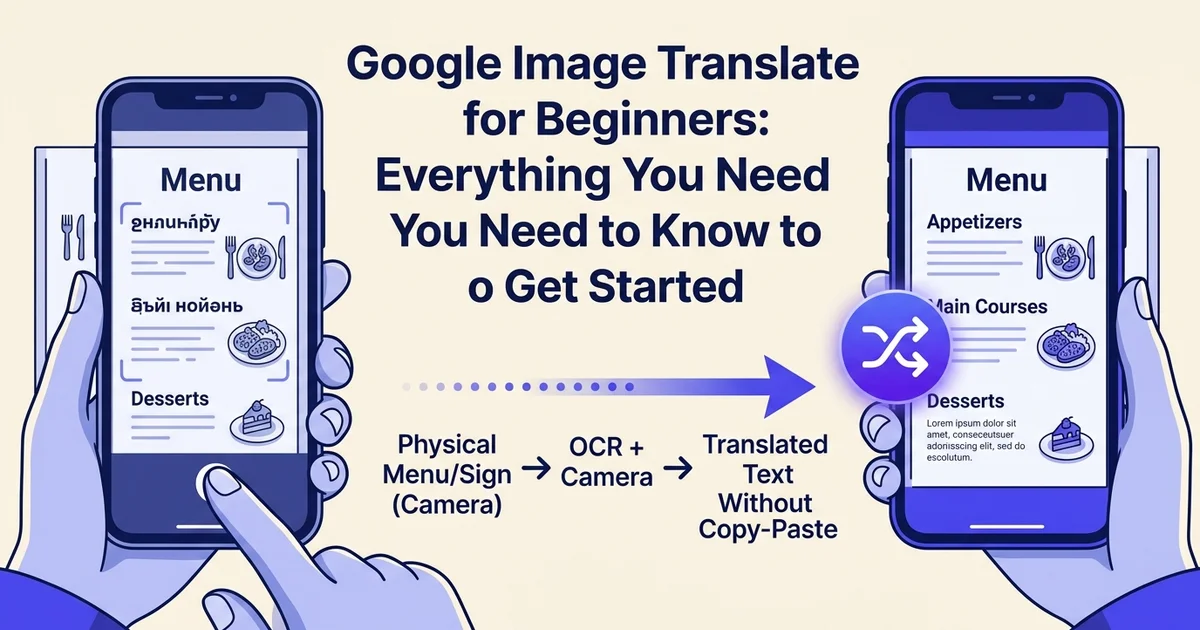
Google Image Translate is a technology that reads text inside a photo or image and converts it into another language. Unlike typing words into a translation box, this approach works directly with visual content, making it possible to translate a restaurant menu, a street sign, or a printed document simply by pointing your camera at it.
How it differs from traditional text translation
Standard text translation requires you to copy and paste words into a tool like Google Translate. Google Image Translate skips that step entirely. Instead of working with text you have already extracted, it processes the raw image itself, identifies the words visually, and delivers a translation in seconds. That difference matters enormously when you are dealing with physical documents, handwritten notes, or content you simply cannot copy and paste.
The role of OCR: teaching machines to read
The engine behind image translation is a technology called optical character recognition, or OCR. Think of OCR as a spell-checker for your eyes: it scans an image pixel by pixel, identifies shapes that match known letters and characters, and converts those shapes into machine-readable text. Once the text is extracted, a translation engine handles the rest.
Where Google Image Translate lives
Google Image Translate is not a standalone product. It is built into two tools you may already use: Google Translate (via its camera mode) and Google Lens (via visual search). According to Think with Google, Google Lens is used by more than 1.5 billion people every month, which gives you a sense of how mainstream this technology has already become.
For a deeper look at how the broader google translate image feature set works, the next few sections will walk you through each tool step by step. 📸
Key terms you need to know
Before diving into the how-to steps, it helps to understand a handful of terms that come up repeatedly when using Google Image Translate. Think of this as a quick reference glossary you can return to anytime.
OCR (optical character recognition)
OCR is the technology that reads text from images. Instead of seeing a photo as a collection of pixels, OCR software identifies individual letters and words, converting them into editable, translatable text. It is the engine that makes image translation possible in the first place.
Source language and target language
The source language is the language the original text is written in. The target language is the language you want it translated into. For example, if you photograph a French menu and want English output, French is your source and English is your target.
Google Translate app vs. Google Lens
These two tools often cause confusion. The google translate app is a standalone translation tool with a built-in camera feature. Google Lens is a separate visual search tool that also handles translation. Both can translate images, but they are distinct products with different interfaces.
Neural machine translation
This is the AI-powered method modern translation tools use. Rather than swapping words one by one, neural machine translation (NMT) reads entire sentences for context, producing results that sound far more natural.
Instant camera translation
This simply means your phone translates text in real time as you point your camera at it, with no need to photograph, upload, or wait. 📷
Why Google Image Translate matters: Real-world benefits
Google Image Translate is not just a novelty. It solves genuine, everyday problems for millions of people across travel, business, and learning. According to Google Translate (2024), the service processes approximately 1 trillion words per month, which gives you a sense of how much real demand exists for fast, accurate translation.
Travel: reading the world around you
Imagine landing in Tokyo or Lisbon and immediately being able to read a restaurant menu, a street sign, or a bus schedule. Point your camera, and the text translates instantly. No typing, no guessing, no awkward miming at a waiter. This is where Google Image Translate genuinely shines, turning unfamiliar environments into navigable ones within seconds.
Business: understanding documents faster
For professionals, time is everything. When a supplier sends a contract in Mandarin or a client emails a scanned invoice in French, manually transcribing and translating that text wastes hours. Google Image Translate lets you extract meaning quickly, so decisions do not stall because of a language barrier. If you regularly need to translate Portuguese to English from scanned documents, this capability becomes especially valuable.
Learning: studying foreign languages without the friction
Language learners can point their camera at foreign-language books, flashcards, or handwritten notes and get instant translations. This removes the tedious step of manually typing out unfamiliar characters before you can even begin studying them.
Accessibility: saving time at scale
For general users, the biggest benefit is simply speed. What once took ten minutes of manual effort now takes ten seconds. 🌍
How Google image translate works: The technology explained simply
Understanding what happens behind the scenes makes the whole experience less mysterious. When you point your camera at foreign text, Google runs through a rapid five-step process in the background, turning pixels into readable, translated language in just a few seconds.
Step 1: Capturing the image
Your phone's camera feeds a live visual stream into the app. Think of it as giving Google a pair of eyes. The app continuously scans what your camera sees, ready to detect text at any moment.
Step 2: Recognising text with OCR
Google uses OCR (Optical Character Recognition) to identify letters, words, and sentences within the image. OCR works by analysing shapes and patterns in the visual data and matching them to known characters, much like how your brain recognises handwriting even when it looks slightly different each time.
Step 3: Identifying the source language
Once the text is extracted, Google automatically detects which language it belongs to. You do not need to specify it manually. The system draws on patterns across thousands of languages to make this identification almost instantly.
Step 4: Translating with neural machine translation
Here is where the real intelligence kicks in. Google applies Neural Machine Translation (NMT), a system that translates whole sentences rather than individual words. This produces far more natural-sounding results. According to Google (2022), this upgrade also expanded support to 60 additional languages, making the tool dramatically more useful for global users.
Step 5: Displaying the translated text
The translated text appears overlaid directly on your screen, replacing the original. If you are working with less common language pairs, such as when you need Google Translate English to Myanmar, NMT significantly reduces translation errors compared to older word-by-word methods. 🔍
The entire process takes only seconds, which is what makes it feel almost magical the first time you try it.
Getting started: Your first steps with image translation
Now that you understand how the technology works, it is time to put it into practice. Getting started with Google image translate is straightforward: choose your device, install or access the right app, and follow a few simple setup steps to translate your first image in minutes.
Choose your device
You can use Google image translate on a smartphone, tablet, or desktop computer. Each option works well, but your choice affects which tool you will use:
- Smartphone or tablet: Download the Google Translate app or Google Lens app (both free on iOS and Android). These give you live camera translation, which is the most powerful feature.
- Desktop computer: Access Google Translate directly at translate.google.com. You can upload image files, but live camera translation is not available here.
For beginners, a smartphone is the recommended starting point because the camera features are intuitive and immediate.
Grant camera permissions
When you open the app for the first time, it will ask for camera access. Tap "Allow" when prompted. Without this permission, the live translation feature will not function. You should see a live camera viewfinder appear inside the app once permissions are granted.
Select your languages
Before translating, set your source language (the language in the image) and your target language (the language you want to read). If you are unsure of the source language, select "Detect language" and Google will identify it automatically. This is especially useful when you need to translate Chinese to English without knowing which Chinese dialect you are looking at.
Take or upload your photo
Point your camera at the text, or tap the image upload icon to select a photo from your gallery. For the best results, ensure the image is well-lit, in focus, and shows the full text without cropping. 📸
Step 1: Set up Google Translate on your device
Before you can start translating images, you need the Google Translate app installed and ready on your phone. The setup takes less than five minutes, and once it is done, you will have a powerful google image translate tool in your pocket wherever you go.
Download the Google Translate app
Open your device's app store (Google Play Store for Android or Apple App Store for iOS). Search for 'Google Translate' and tap the official app by Google. Tap 'Install' or 'Get' to download it to your device.
Open the app and sign in
Once installed, open Google Translate. You can use it without signing in, but signing in with your Google account lets you save your translation history and access additional features.
Navigate to the camera feature
Tap the camera icon at the bottom of the screen. This activates the image translation mode and prepares your device to capture or import photos for translation.
Grant camera permissions
Your device will ask for permission to access your camera. Tap 'Allow' to grant Google Translate access. This is necessary for real-time translation of text in your camera view.
Test the setup
Point your camera at any nearby text (a book, sign, or label) to confirm everything is working. You should see the translated text overlay appear on your screen within seconds.
Download the app
Open the App Store (iPhone/iPad) or Google Play Store (Android) and search for "Google Translate." Tap Install and wait for the download to complete. You should see the app icon, a small blue and white speech bubble, appear on your home screen.

Sign in with your Google account
Signing in is optional, but it is strongly recommended. When you are logged in, the app saves your translation history and language preferences across devices. Tap Sign in on the welcome screen and enter your Google account credentials.
Explore the main interface
Open the app and take a moment to look around. You will notice two key areas at the bottom of the screen:
- Text tab: Type or paste written content for translation, useful when you need to translate English to Vietnamese quickly
- Camera tab: Point your phone at any printed text to translate it in real time
The camera tab is where the magic happens for image translation, so remember its location before moving on. 📱
Step 2: Take a clear photo of the text you want to translate
A good photo is the foundation of accurate google image translate results. Before you tap the shutter, spend a few seconds setting up your shot. The quality of your image directly affects how well the app reads and translates the text.
Position your device at the right angle
Hold your phone or tablet so the text is directly in front of the camera lens. Avoid extreme angles that distort the text. Aim for a straight-on view whenever possible.
Ensure adequate lighting
Make sure the area is well-lit. Natural daylight is ideal, but any bright light source works. Avoid shadows falling across the text, as they reduce clarity and make translation less accurate.
Keep the text in focus
Tap on the text area on your screen to focus the camera. Wait for the focus indicator to confirm the text is sharp and clear before taking your photo.
Capture the full text you need
Frame your shot to include all the text you want translated. Leave a small margin around the edges, but avoid including too much background that might confuse the app.
Review and retake if needed
After capturing, review the image on your screen. If the text appears blurry or cut off, tap the camera icon again and retake the photo with better positioning or lighting.
Fill the frame with text
Position your device so the text you want to translate takes up most of the screen. Think of it like taking a photo of a friend: you would not want them tiny in the corner. Move closer to the sign, menu, or document until the words are large and clearly visible.
Get the lighting right
Good lighting is essential. Natural daylight or a well-lit room works best. Avoid standing with a bright window behind you, as this creates shadows that confuse the app. If you are translating a document indoors, turn on an overhead light or move closer to a lamp.
Hold steady and stay straight
Hold your camera still for 2-3 seconds before capturing. Blurry images produce inaccurate translations, especially with complex scripts like Arabic (if you regularly need to translate arabic to english, sharpness matters even more). Also keep your phone parallel to the text rather than at an angle, since tilted shots distort letter shapes and reduce accuracy.
What you should see: The text on screen appears sharp, evenly lit, and fills most of the viewfinder. 📷
Step 3: Select your source and target languages
Once your photo is captured, Google Image Translate displays two language buttons at the top of the screen. These let you tell the app what language it is reading and what language you want the result in. Getting this right takes only a few seconds and makes a significant difference in translation accuracy.
Identify the source language
Look at the language button on the left side of the screen. This shows the language of the text in your image. If it's incorrect, tap it to open the language menu and select the correct source language.
Choose your target language
Tap the language button on the right side of the screen. This is where you select the language you want the text translated into. Scroll through the list or search for your preferred language.
Confirm your selections
Once both languages are selected, the app automatically processes the translation. You'll see the translated text overlay appear on your image within seconds.
Adjust if the translation seems off
If the translation doesn't look right, double-check that you selected the correct source language. Misidentifying the original language is a common cause of poor translations.
Choosing your source language
Tap the left-hand button to set your source language, which is the language of the text in your image. If you already know the language, select it from the list. If you are unsure, choose "Detect language" (sometimes labelled "Auto-detect"). This option uses Google's AI to identify the language automatically, which is handy when you encounter an unfamiliar script or mixed-language signage.
Choosing your target language
Tap the right-hand button to set your target language, meaning the language you want the translation delivered in. Select your preferred language from the searchable list. Typing the first few letters speeds up the search considerably.
How many languages are supported?
According to Google Translate (2024), the platform now supports approximately 250 languages, following an expansion that added 110 new languages in June 2024. That covers the vast majority of languages you are likely to encounter.
What you should see: Both language buttons display your chosen languages, and the app is ready to process your image. 🌐
Step 4: View and copy your translated text
Once your languages are set, the translation appears almost instantly. Google Lens overlays the translated text directly onto your image, replacing the original words in place so the layout feels familiar and easy to follow.
View the translated text overlay
Google Lens displays the translated text directly on top of the original text in your image. The layout and positioning match the original, making it easy to understand the translation in context.
Tap to select specific text
If you want to copy only part of the translation, tap and drag to highlight the specific words or phrases you need. This is useful when the image contains multiple sections of text.
Copy the translation
Once your text is selected, tap the 'Copy' button that appears. The translated text is now saved to your device's clipboard and ready to paste elsewhere.
Paste into your desired location
Open any app where you want to use the translation—a notes app, email, messaging app, or document. Tap and select 'Paste' to insert the translated text.
Save the full translation if needed
For future reference, you can take a screenshot of the translated image or save it to your device's photo gallery. Google Translate also stores recent translations in your history.
Wait for the overlay to appear
Give the app one to two seconds to process. You will see the original text fade or blur slightly as the translated version appears on top of it. This overlay is the core feature that makes google image translate so practical for real-world use.
What you should see: Translated text sitting neatly over the original image in a contrasting colour. 📱
Tap for alternative word choices
Tap any translated word to reveal alternative translations. This is especially useful for words with multiple meanings, where context matters.
Copy or share your translation
To copy the text, tap and hold the translated result, then select Copy from the menu that appears. You can then paste it into any app, document, or message. Use the Share button to send the translation directly to another app in one step.
In our experience at DocuGlot, copying translated text and bringing it into a dedicated tool gives you far greater control over formatting and accuracy, particularly when working with longer or more complex documents.
What you should see: A confirmation that text has been copied, or your chosen app opening with the translation ready to paste. ✅
Common beginner mistakes to avoid
Even with a straightforward tool like Google Image Translate, a few missteps can lead to frustrating results. Knowing what to watch out for before you start will save you time and help you get cleaner, more reliable translations from the beginning.
Using blurry or low-quality images
Capture sharp, well-lit photos every time. According to Google Translate (2024), translation accuracy depends directly on the clarity of the text in your image. Small, unclear, or stylized text may not be recognized correctly. Hold your phone steady, move closer to the text, and make sure there is enough light before you shoot.
What you should see: Clean, legible characters in your preview before you proceed.
Selecting the wrong source language
Always confirm the source language before translating. If the app misidentifies the language, the output will be garbled or meaningless. Switch to manual language selection whenever you are working with less common languages.
Trying to translate handwriting or decorative fonts
Avoid pointing the camera at handwritten notes, cursive scripts, or heavily stylized logos. The app is optimized for printed, standard fonts and struggles significantly with anything outside that range.
Expecting perfect accuracy for specialized terminology
Technical, medical, or legal terms often produce imprecise results. Treat the output as a starting point, not a final translation, especially in professional contexts.
Going offline without preparing first
Real-time camera translation requires a strong network connection. Download offline language packs in advance if you know you will be working without reliable internet access. 📶
Tools and resources for beginners
Now that you know what to avoid, having the right tools in your corner makes the entire process smoother. Here is a quick overview of the most useful resources for anyone starting out with google image translate.
Google Translate app
Download the official Google Translate app (available free on Android and iOS) as your primary mobile tool. It gives you direct access to camera translation, photo upload, and offline language packs all in one place.
Google Lens
Google Lens is a visual search and translation tool built into most Android devices and available on iOS through the Google app. Point it at any image or printed text and it identifies and translates content instantly.
Google Translate website
For desktop users, visit translate.google.com to upload images directly from your browser. No app download required.
DocuGlot for formatted documents 📄
When you need to translate business documents, reports, or books while preserving their original layout, DocuGlot is worth exploring. Unlike standard image translation, it handles complex formatting automatically, which saves significant editing time.
Google Translate Help Center
Bookmark the official Google Translate Help Center for troubleshooting guides, feature updates, and step-by-step support documentation straight from Google.
Troubleshooting: Why your translation might not be working
Even with the right tools and setup, image translation does not always go smoothly. Most problems have simple fixes once you know what to look for. Check the common causes below before assuming the app or your device is broken.

Image is too blurry
Retake the photo in good lighting and hold your camera steady. Blurry images prevent Google Lens from detecting individual characters accurately. Natural daylight or a well-lit indoor space makes a significant difference.
Text is not recognized
Ensure the font is standard and legible. Heavily stylized, handwritten, or decorative fonts, such as ornate scripts or graffiti-style lettering, are harder for optical character recognition (OCR, the technology that reads text from images) to process reliably.
Translation seems inaccurate
Verify that you selected the correct source language. If you leave it on "Detect language," the app may misidentify a less common language. Manually selecting the source language almost always improves accuracy.
App is slow or freezing
Check your internet connection first. Real-time translation requires an active connection, so offline mode has significant limitations. Restarting the app clears temporary memory issues and often resolves sluggish performance immediately.
Next steps: Where to go from here
Now that you can troubleshoot common issues, it is time to build on that foundation and explore what else is possible. Image translation is just one tool in a much larger toolkit, and knowing where to go next will help you get far more value from your efforts.
Practice with different image types and languages
Start experimenting beyond simple signs and menus. Try translating handwritten notes, product packaging, or screenshots in different scripts. Each image type presents unique challenges, and regular practice builds the pattern recognition that makes you faster and more confident over time.
Explore Google Lens for richer results
Google Lens (a visual search tool that combines image recognition with translation) goes beyond text. It can identify objects, scan barcodes, and pull up contextual information alongside translations, making it a powerful companion to standard image translation.
Level up with document translation
When you need to translate full documents, like contracts, reports, or books, image translation alone will not preserve your formatting. Tools like DocuGlot are built specifically for this, maintaining layout, fonts, and structure across professional documents. 📄
Use translation as part of language learning
Pair image translation with active study. When you translate a word, look it up, note its context, and revisit it. Translation tools accelerate learning when used intentionally rather than passively.
Myths and misconceptions about image translation
Before you rely on Google Image Translate for important tasks, it helps to separate fact from fiction. Several persistent myths can lead to frustration or misplaced expectations. Here is what the tool actually does, and where its real limits lie.
Myth: it is 100% accurate
Accuracy varies significantly depending on image quality, font style, and language pair. As Google Translate Help notes, "translation accuracy depends on the clarity of the text; small, unclear, or stylized text may not translate correctly." Treat results as a helpful guide, not a guaranteed perfect output.
Myth: it works perfectly offline
Real-time camera translation requires an active internet connection for full functionality. Offline mode exists for basic text translation but is limited in scope and reliability.
Myth: it can translate any handwriting
Printed, clearly formatted text produces the best results. Handwritten text, especially cursive or informal script, is frequently misread or skipped entirely. 📝
Myth: it is only useful for travel
Google Image Translate has genuine applications in business, education, accessibility, and content research. Its versatility extends well beyond reading a restaurant menu abroad.
Myth: it is complicated to use
The process is straightforward and beginner-friendly. Point your camera, tap translate, and read. Most users are comfortable with the basics within minutes of opening the app.
Success stories: How people use Google Image Translate
Real people across very different walks of life are already using image translation to solve everyday problems. These examples show how the tool moves from a novelty into something genuinely useful.
Business professionals decoding foreign documents
A procurement manager receiving a supplier invoice written in Mandarin can photograph it and read the key figures instantly, without waiting for a translator. Quick comprehension keeps deals moving.
Travelers navigating unfamiliar places 🌍
Point your phone at a Japanese menu or a German train timetable and get a readable translation in seconds. Many travelers report feeling significantly more confident exploring destinations where they share no common language with locals.
Students learning through real-world materials
Translate a French magazine article or a Spanish product label to study vocabulary in authentic context, which reinforces learning far more effectively than textbook exercises alone.
Content creators and accessibility advocates
Content creators scan international social media posts to research trends across markets. Meanwhile, accessibility advocates use image translation to convert visual text into their preferred language, making information genuinely inclusive for everyone. 🌐
Conclusion: You're ready to start translating
You now have everything you need to take your first confident step with Google Image Translate. The process is straightforward: open Google Translate, upload or capture your image, select your languages, and let the tool do the heavy lifting.
Practice makes the process effortless
Start with something simple, a product label, a street sign, or a printed menu. The more you practice, the more natural it becomes. Remember, clear images and accurate language selection are the two biggest factors in getting reliable results.
Build your skills and explore further
As your confidence grows, explore Google Translate's other features, including text and document translation, to broaden your toolkit.
When accuracy really matters
For important business documents, contracts, or professional materials, consider a dedicated solution. DocuGlot offers precise, document-ready translations that go beyond what image tools can reliably deliver. Your global communication journey starts now. 🚀
Frequently asked questions
How do I translate text from an image with Google Translate?
Open the Google Translate app, tap the camera icon, and either point your camera at the text or import a photo from your gallery. Select your target language, and Google image translate will overlay the translation directly on the image.
Can Google Translate translate an image on a computer?
Yes. Visit translate.google.com, click the "Images" tab, and upload your image file. The tool will extract and translate any visible text automatically.
How do I use Google Translate camera on Android?
Open the Google Translate app, tap the camera icon, and choose "Instant" for live translation or "Scan" to capture a still image. Point your camera at the text and the translation appears as an overlay.
How do I translate a picture on iPhone with Google Translate?
The process mirrors Android. Open the app, tap the camera icon, and select your language pair before scanning or importing your image.
Can Google Translate translate handwriting in an image?
It can handle clear, neat handwriting reasonably well. However, as Google Translate Help notes, "translation accuracy depends on the clarity of the text; small, unclear, or stylized text may not translate correctly."
Does Google image translation work offline?
Partial offline support is available if you download a language pack in advance. Full image translation features work best with an active internet connection.
Why is Google Translate not translating my image correctly?
Poor lighting, low image resolution, or unusual fonts are common culprits. According to Google Translate Help, users should "use clear images and commonly used fonts, and use a strong network connection" for best results.
How accurate is Google Translate for images?
Accuracy is solid for common languages and clean printed text, but it can struggle with technical, legal, or stylized content. Based on our work at DocuGlot, image translation works well for quick comprehension tasks. For documents where precision is critical, DocuGlot Basic offers a more reliable, structured approach to getting translations right. 🎯
Tags
Ready to translate your documents?
DocuGlot uses advanced AI to translate your documents while preserving formatting perfectly.
Start Translating