The Essential Checklist for Accurate Spanish-to-English Translation
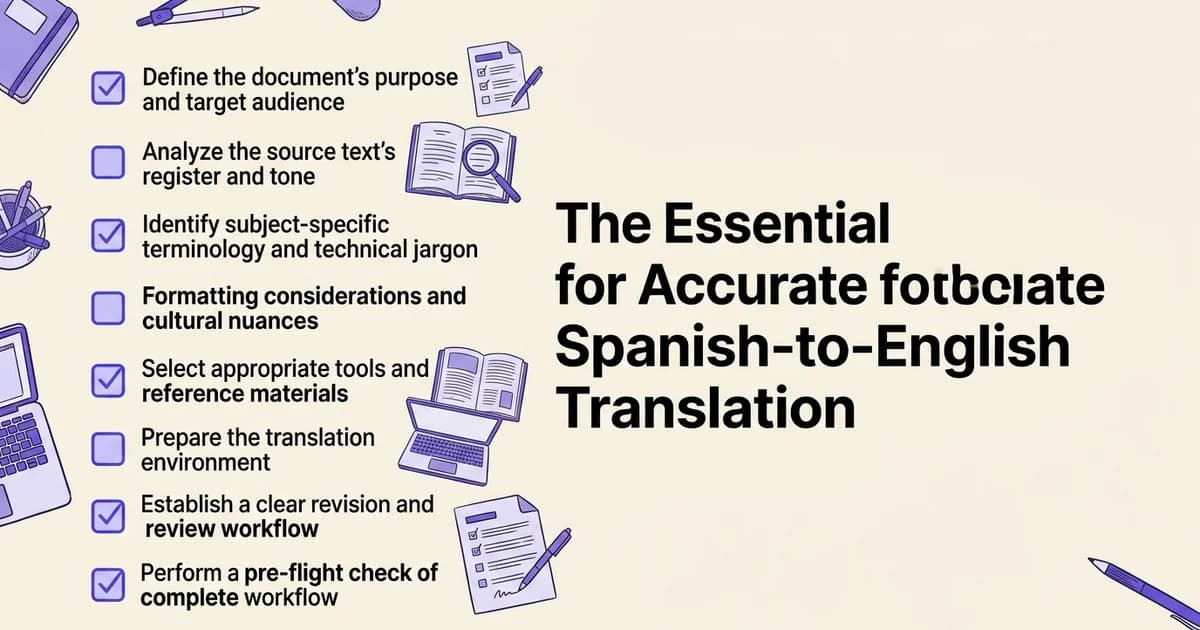
- Access to Google Translate (web or mobile app)
- Spanish-language content ready for translation
- Basic familiarity with copying and pasting text
- Understanding of your document format (text, PDF, Word, etc.)
Introduction: when to use this checklist
Google Translate handles Spanish-to-English remarkably well compared to many other language pairs. According to Google Translate Statistics & Trends (2024), people translate around 1 trillion words each month across Google Translate and related tools. Spanish benefits directly from that scale: neural machine translation performs strongest on high-resource languages with abundant training data, and Spanish ranks among the best-supported.
But volume does not equal perfection. At DocuGlot, our analysis shows that the biggest translation failures rarely come from the AI itself. They come from poorly prepared source files, formatting that breaks mid-translation, and content types that demand human judgment.
Use this checklist if you are translating any of the following:
- Business documents: contracts, reports, proposals
- Marketing content: landing pages, brochures, email campaigns
- Technical or legal text: where a single mistranslation carries real consequences
- Formatted files: PDFs, PowerPoint decks, or Excel sheets where layout matters
Set one expectation before you begin: automated translation is a powerful starting point, not always a finished product. This checklist helps you close that gap.
Phase 1: Prepare your Spanish content for translation
Before you run anything through Google Translate Spanish to English, a few minutes of preparation will save you significant rework later. Assess what you have, flag potential problem areas, and set your document up for the cleanest possible output.
- Read through your entire Spanish document to identify context and tone
- Flag technical terms, brand names, and proper nouns that shouldn't be translated
- Check for formatting inconsistencies (spacing, punctuation, line breaks)
- Remove unnecessary line breaks or extra spaces between paragraphs
- Verify that all special characters (accents, tildes, umlauts) display correctly
- Note any slang, colloquialisms, or regional Spanish variations
- Identify sections with numbers, dates, or currency that may need localization
- Create a glossary of key terms you want translated consistently
Assess your document type and complexity
Start by categorising your content honestly:
- Simple content: short emails, basic forms, informal messages. These translate well with minimal intervention.
- Moderate complexity: business reports, marketing copy, structured documents with headers and tables.
- High complexity: legal contracts, medical records, technical manuals. According to PMC / NCBI (2025), AI-translated discharge instructions matched professional translations for accuracy but fell short on fluency, which matters when polished output is non-negotiable.
Identify specialised terminology and jargon
Scan your document before translating and note any:
- Industry-specific terms: medical codes, legal clauses, financial instruments
- Brand names, product names, or proper nouns that should not be translated
- Acronyms that carry different meanings across languages
Flag these manually. No automated tool handles every niche term perfectly, and catching them early prevents compounding errors downstream.
Check formatting that needs to survive translation
If your file is a PDF, PowerPoint deck, or Excel sheet, formatting is part of the message. Uploading a formatted file to a tool like DocuGlot preserves your original layout automatically, returning the translated file in the same format you uploaded. This matters especially for multi-column layouts, tables, and branded slide decks.
Review source content for clarity
Ambiguous Spanish is ambiguous English. Before translating:
- Remove run-on sentences that could confuse the translation engine.
- Clarify pronouns where the referent is unclear.
- Simplify idiomatic expressions if a literal translation would lose meaning.
Clean input produces clean output. This principle applies whether you are working with Spanish, or handling other language pairs like Portuguese to English or Vietnamese to English. 🧹
Phase 2: Choose your translation method
With your Spanish content cleaned up, the next decision is how you will translate it. The right method depends on your content type, file format, and how much formatting you need to preserve. Picking the wrong tool wastes time and often produces output you cannot use directly.
- Assess your content type (website copy, documents, emails, social media)
- Determine your file format (plain text, PDF, Word, HTML, image)
- Decide if you need to preserve original formatting and layout
- Check file size limits for your chosen method
- Consider whether you need real-time translation or batch processing
- Evaluate if you need conversation-mode translation for audio/video
- Determine your timeline and urgency requirements
- Identify whether you'll use Google Translate directly or a third-party tool
Text-based translation for short passages
For a paragraph, a quote, or a short message, paste directly into Google Translate's text box. This works well for quick checks, but keep passages under a few hundred words to maintain context accuracy.
Document upload for formatted files
When your Spanish content lives inside a PDF, Word document, PowerPoint deck, or spreadsheet, formatting is at risk. A standard copy-paste strips tables, columns, and layout entirely.
For these cases, DocuGlot's Basic Plan handles the heavy lifting. Upload your file (PDF, DOCX, PPTX, XLSX, and more, up to 500 MB), and it returns the translation in the original format with structure intact. No rebuilding layouts manually afterward.
Real-time audio and conversation translation
According to Google (2025), Google introduced real-time, back-and-forth audio and on-screen translation for conversations across more than 70 languages, including Spanish. Use this mode for live interviews, customer calls, or recorded audio content.
Website and image content
If you need to translate on-screen text or images, explore Google Translate's image feature for quick visual grabs. For structured image files, DocuGlot also supports JPEG and PNG formats directly. 🖼️
Phase 3: Execute the translation
With your method selected, it's time to run the actual translation. The steps below walk you through both the quick copy-paste approach in Google Translate and the more structured file-upload workflow for longer documents.
Set your language pair correctly
Before pasting a single word, confirm your source language is set to Spanish and your target language is set to English. Google Translate sometimes auto-detects the source language incorrectly, especially with short phrases or mixed-language content. Always verify manually.
What you should see: The language selector at the top of the interface should display "Spanish" on the left and "English (United States)" or your preferred English variant on the right.
Paste or type your Spanish text
Copy your Spanish source text and paste it into the left-hand input box. Google Translate processes up to 5,000 characters per query, so break longer texts into logical chunks, such as paragraph by paragraph, to maintain context and coherence.
What you should see: The English translation appears in the right-hand panel within seconds.
Upload documents for batch translation 📄
For multi-page files, the copy-paste method quickly becomes impractical. This is where a dedicated document translation tool saves significant time.
- Upload your file to DocuGlot's Basic Plan, which accepts PDF, DOCX, PowerPoint, Excel, JPEG, PNG, and more, up to 500 MB per file.
- Select Spanish as the source and English as the target from the language dropdowns.
- Submit and wait for your email notification confirming the translated file is ready.
DocuGlot preserves your original document structure and formatting throughout this process, so tables, headers, and layouts arrive intact in the output file. This matters more than it might seem: a 2024 comparative study evaluated machine translation across academic, technical, and everyday content types, highlighting how formatting integrity is just as critical as linguistic accuracy for professional documents.
Review the initial output
Scan the translated text immediately for obvious errors: missing sentences, garbled technical terms, or broken formatting. Flag any sections that read awkwardly for closer attention in the next phase. If you regularly translate documents in other language pairs, the same execution workflow applies, whether you are working on Spanish, Mandarin, or another language entirely. (See our guide on how to translate Chinese to English for a parallel walkthrough.)
Phase 4: Review and refine the translation
With a draft translation in hand, systematic review separates usable output from polished, professional content. This phase is where you catch what automated tools miss, from subtle mistranslations to awkward sentence constructions that technically parse but read nothing like natural English.
- Read the entire English translation from start to finish
- Compare the translation against the original Spanish for accuracy
- Check for awkward phrasing or unnatural English constructions
- Verify that technical terms and proper nouns are correct
- Confirm that numbers, dates, and currency are properly formatted
- Look for missing words or incomplete sentences
- Test any links, buttons, or interactive elements if applicable
- Have a native English speaker review critical sections if possible
- Document any corrections needed for future reference
Compare source and target text side by side
Open your Spanish original and English translation in parallel columns or windows. Read each paragraph together, not just the English alone. This is how you catch omissions, added meaning, or phrases where the tool chose a technically valid word that misrepresents the intended tone.

Pay close attention to:
- Idiomatic expressions that were translated word-for-word instead of contextually
- Negations and conditionals, which are common failure points in machine translation
- Paragraph-level meaning, not just sentence-level accuracy
Verify technical terms and proper nouns
Specialized content is where automated translation struggles most. According to Lost in Translation? Evaluating Machine Translation of English-to-Spanish Psychoeducational Reports (2026), only 14% of Google Translate outputs were rated fully accurate for specialized Spanish passages. Cross-reference every industry term, product name, and proper noun against a trusted glossary or authoritative source.
If you uploaded your document through DocuGlot, the preserved formatting means your review happens in the original document structure, so tables, headers, and callout boxes remain exactly where they were, making term-by-term verification faster and less error-prone.
Check grammar and flag content for human review
Read the English output aloud. Sentences that feel clunky or require re-reading are candidates for manual rewriting. Mark any passage involving legal language, medical instructions, or culturally sensitive content as requiring professional human review before deployment. For documents in other language pairs, the same review discipline applies, whether you are working with Spanish or translating English to Vietnamese.
Phase 5: Finalize and deploy your translated content
With your translation reviewed and refined, the final phase focuses on getting your document ready for real-world use. This means verifying formatting, making a deployment decision, and archiving both versions for future reference.
Discover how DocuGlot - Basic Plan approaches google translate spanish to english DocuGlot - Basic Plan.
Export your translated document
Download your finished file in its original format. In DocuGlot, your translated document returns in the same format you uploaded, so a PowerPoint stays a PowerPoint and a PDF stays a PDF, with layout and structure intact. Open the exported file and confirm that fonts, tables, headers, and images all render correctly before sharing it.
What you should see: The translated document should be visually indistinguishable in structure from the original.
Decide whether professional editing is needed
For high-stakes content, machine translation alone may not be enough. According to PMC (2025), AI-generated Spanish translations of medical discharge instructions scored 3.82 for fluency versus 4.20 for professional translations. If your content involves legal, medical, or compliance language, budget for a human editor at this stage.
Archive both versions
Save the original Spanish document alongside the English translation. This protects you if questions arise later about meaning or intent, and gives you a clean baseline for future updates.
Common mistakes to avoid
Even with a solid workflow in place, a few recurring errors can undermine your results. Recognizing these pitfalls before they happen saves time, protects your reputation, and keeps your translated content credible.
Skipping accuracy review after translation
Never publish output without reading it against the source. Automated tools produce plausible-sounding text that can still contain subtle errors, especially with idiomatic Spanish phrases.
Assuming specialized content is fully accurate
According to Sonix (Year), even high-performing neural machine translation systems show variability across domains. Technical, legal, and medical content requires human review regardless of the tool used.
Ignoring formatting in document translations
Formatting loss is a common frustration. DocuGlot's Basic Plan preserves your original document structure across PDFs, PowerPoint files, and Excel sheets, so you are not rebuilding layouts manually after translation.
Translating long documents as a single block
Break large files into logical sections before uploading. This improves accuracy and makes reviewing the output far more manageable.
Failing to verify proper nouns and brand names
Check that names, trademarks, and product titles remain unchanged. Automated tools sometimes translate brand names literally, which can create serious consistency problems.
Not testing with native speakers when stakes are high
For customer-facing or high-visibility content, share the translated text with a native English speaker before publishing. No tool replaces that final human check. 🗣️
Tools you'll need
Building an accurate Spanish-to-English translation workflow means having the right tools ready before you start. Each tool below serves a specific purpose, so knowing when to reach for each one saves time and prevents errors.

Google Translate (web or mobile)
Use Google Translate spanish to english for quick lookups, single sentences, or informal content where speed matters more than precision. The web version handles pasted text well, while the mobile app adds useful features like camera input for printed text.
DocuGlot for document translation
For business documents, reports, or anything with complex formatting, use DocuGlot to handle the heavy lifting. Upload your file (PDF, DOCX, PowerPoint, Excel, and more up to 500 MB), select English as the target language, and the tool returns a translated file in the original format with structure and layout preserved. This matters because reformatting a broken document after translation wastes significant time.
- PDF Translator: Converts Spanish PDFs to translated Word documents without losing layout
- PowerPoint Translator: Processes presentation slides while keeping design elements intact
- Excel Translator: Translates spreadsheet content cell by cell, preserving formulas and structure
- Image Translator: Extracts and translates text embedded within JPEG or PNG files
Text editor for manual refinements
Keep a plain text editor open throughout your workflow. After any automated translation, paste the output here to review tone, fix awkward phrasing, and apply the terminology consistency checks covered in earlier sections. Simple tools like Notepad, TextEdit, or Google Docs work perfectly for this step. ✏️
Quick reference summary
Use this nine-step checklist as a repeatable workflow every time you run a Google Translate Spanish to English project or process a document through a dedicated tool.
- Step 1: Prepare your Spanish content (remove formatting issues, flag special terms)
- Step 2: Choose your translation method (direct paste, file upload, or third-party tool)
- Step 3: Execute the translation (run through Google Translate or selected tool)
- Step 4: Review and refine (compare against original, check for errors)
- Step 5: Finalize and deploy (verify formatting, make deployment decision, archive files)
- Step 6: Avoid common mistakes (watch for untranslated terms, formatting loss)
- Step 7: Use supporting tools (glossaries, spell-checkers, comparison tools)
- Step 8: Document your workflow for consistency on future projects
- Step 9: Archive both source and translated versions for reference
- Assess document type and complexity before choosing any tool. Legal, medical, and technical content needs more scrutiny than casual text.
- Choose your input method: text paste for short content, document upload for formatted files, or real-time translation for live conversations.
- Configure language settings explicitly. Set source language to Spanish and target to English rather than relying on auto-detect.
- Execute the translation. For formatted documents, upload directly to DocuGlot, which preserves your original layout across PDF, DOCX, PowerPoint, and Excel files.
- Review output against the original Spanish text paragraph by paragraph. Flag anything that reads unnaturally.
- Identify inaccuracies and unclear passages. Mark idioms, proper nouns, and technical terms for closer attention.
- Determine whether professional human review is needed. High-stakes documents almost always warrant it.
- Export and finalize. DocuGlot returns files in their original format, so no reformatting is required before sharing.
- Archive both versions together for compliance, auditing, or future reference. 🗂️
Frequently asked questions
How do I translate Spanish to English with Google Translate?
Visit translate.google.com, select Spanish as the source language and English as the target, then type or paste your text. You can also use the microphone for spoken input or upload an image containing text.
Can Google Translate translate a Spanish document into English?
Yes. Google Translate accepts uploaded documents, though it may not preserve complex formatting. For business documents where layout matters, a dedicated tool like DocuGlot keeps your original formatting intact across PDF, DOCX, PowerPoint, and Excel files.
How accurate is Google Translate from Spanish to English?
Accuracy is generally strong for everyday content. According to a comparative effectiveness analysis published in PMC (2025), AI Spanish translations scored slightly lower on fluency than professional translations, making human review advisable for high-stakes content.
How do I translate a PDF from Spanish to English?
Upload the PDF directly to Google Translate or use a document translation service. DocuGlot's Basic Plan accepts PDFs up to 500 MB and returns a translated file in the original format, no reformatting needed.
Can Google Translate translate Spanish handwriting or images to English?
Yes. Google Lens, integrated with Google Translate, can process images containing printed or handwritten Spanish text. DocuGlot's Image Translator also handles JPEG and PNG files for cleaner, structured output.
How do I translate an entire website from Spanish to English?
Paste the full URL into Google Translate and select Spanish to English. Chrome users can also right-click any page and choose "Translate to English" for instant results.
What is the best Spanish-to-English translator besides Google Translate?
DeepL, Microsoft Translator, and AI-powered document tools each serve different needs. For formatted documents, DocuGlot handles 100-plus languages with pay-per-document pricing and no subscription required.
Why does Google Translate give incorrect Spanish-to-English translations?
Context, idioms, and domain-specific terminology often trip up automated systems. According to Google (2025), users translate around 1 trillion words monthly across its platforms, but volume does not eliminate nuance errors, especially in legal, medical, or technical content.
Based on our work at DocuGlot, the most reliable results come from combining a strong machine translation baseline with a structured human review step for anything that carries real professional or legal weight. 🎯
Tags
Ready to translate your documents?
DocuGlot uses advanced AI to translate your documents while preserving formatting perfectly.
Start Translating