Translating English to Arabic: A Complete Walkthrough
- An English document in a supported format (PDF, DOCX, or image file)
- Access to a web browser and internet connection
- Basic familiarity with uploading files to online tools
Introduction: why translating English to Arabic matters
Arabic is the fifth most spoken language in the world, with over 400 million native speakers across 22 countries. For businesses expanding into the Middle East and North Africa, and for content creators reaching new audiences, translating English to Arabic is no longer optional. It is a genuine competitive advantage.
At DocuGlot, our analysis shows that the most common pain point in English-to-Arabic translation is not the language itself. It is what happens to the document around it. Tables collapse, fonts break, headers disappear, and a polished report becomes an unusable file. Layout preservation is not a nice-to-have. For professional documents, it is the entire point.
Why accuracy and formatting both matter
Arabic reads right-to-left, uses a distinct script, and has formal versus colloquial registers that carry real weight in business contexts. A mistranslation in a contract or a broken table in a proposal signals carelessness to an Arabic-speaking audience. According to MixTranslate (2025), the leading AI translation tools are now prioritizing layout preservation specifically because formatting loss has been the most consistent complaint from professional users.
What this walkthrough covers
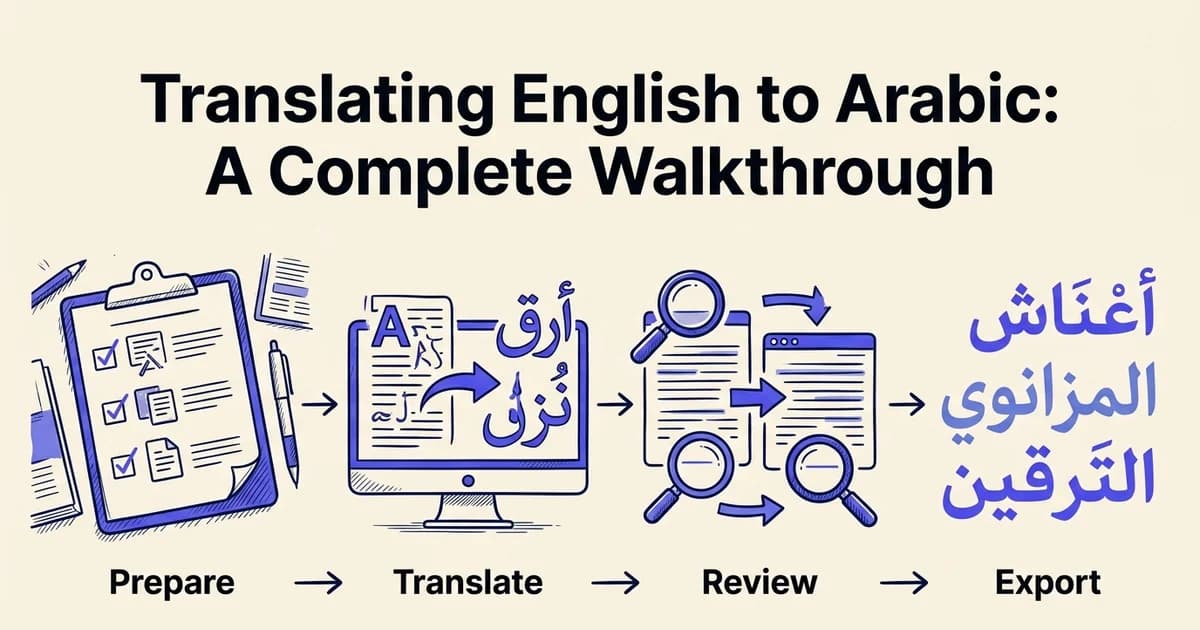
This guide walks you through the complete workflow: preparing your source document, choosing the right tool, running the translation, reviewing output, and exporting a clean final file. You will also find guidance on realistic timelines, common failure points, and how tools like DocuGlot Basic handle format-sensitive files across PDF, DOCX, and other formats. 🗂️
Expect the full process to take between a few minutes and a couple of hours, depending on document complexity.
What you'll need: prerequisites and tools
Before you begin, gather the right tools and files. Having everything in place before you start saves time and prevents mid-process interruptions. Most of what you need is free or low-cost, and the setup takes only a few minutes.
Software and accounts
You will need:
- A modern web browser (Chrome, Firefox, or Edge): required to access cloud-based translation tools without installing anything locally
- Your source document: accepted formats include PDF, DOCX, TXT, and Markdown for most workflows
- A translation tool account: DocuGlot Basic covers documents up to roughly 100,000 words and supports 100+ languages, including Arabic, with no subscription required
Free vs. paid options
Free tools often strip formatting, cap document size, or produce lower-quality output for complex scripts like Arabic. DocuGlot Basic uses a transparent pay-per-use model, so you only pay for what you translate. This is especially useful if you handle documents occasionally rather than at scale.
OCR and scanned document requirements
If your English source is a scanned PDF rather than a text-based file, you will need OCR (optical character recognition) processing before translation begins. According to MixTranslate (2025), AI-powered tools increasingly handle OCR natively, reducing the need for separate preprocessing software. Ensure your scanned file is at least 300 DPI for reliable character recognition. 🖨️
Step 1: prepare your English document for translation
Before you run any translation, a few minutes of preparation will save you significant time and frustration later. Checking your file format, reviewing your content for clarity, and identifying complex elements upfront ensures the translation process runs smoothly from start to finish.
Check your file format
Verify that your document is in a supported format (PDF, DOCX, XLSX, PPTX, etc.). DocuGlot supports 65+ document types, so most common formats will work. If your file is in an unusual format, convert it to a standard format first.
Review content for clarity
Read through your English document and identify any ambiguous phrasing, unclear references, or colloquialisms that might not translate well. Arabic translation works best with clear, direct language. Make notes of any sections that need simplification.
Identify complex elements
Mark tables, currency amounts (USD, EUR, etc.), dates, reference numbers, and proper names that need special attention. These elements should remain unchanged or be adapted appropriately for Arabic-speaking audiences.
Save a backup copy
Create a copy of your original English document before translation. This preserves your source material and allows you to compare the original with the translated version side-by-side.
Remove unnecessary formatting
Strip out excessive fonts, colors, or styles that might complicate the translation process. Keep essential formatting like bold, italics, and headings, but simplify decorative elements.
Check format compatibility
Confirm that your document is saved in a format your translation tool actually supports. DocuGlot accepts PDF, DOCX, TXT, and Markdown files, covering the most common formats business professionals and content creators work with daily. Docling, another widely used processing library, extends support further to PPTX, XLSX, HTML, and EPUB as well.
If your file is currently in an unsupported format, convert it before uploading. For example, export a Google Doc as a DOCX file, or save a web article as a plain text file.
Review your content for clarity
Read through your English source document with fresh eyes. Look for:
- Ambiguous phrasing that could confuse a translation engine
- Inconsistent terminology, especially for product names, technical terms, or branded language
- Incomplete sentences or typos that will carry errors directly into the Arabic output
Clean source text produces cleaner translations. This step is especially important for English to Arabic work, since Arabic grammar structures differ significantly from English.
Identify elements that need formatting preservation
Scan your document for tables, headers, footers, numbered lists, and styled text. Note where these appear so you can verify they survive the translation intact. DocuGlot's format preservation feature is specifically designed to maintain these structural elements, including fonts and colors, so your translated document looks as polished as the original. 📄
Once your document is clean, saved in a compatible format, and you have a clear picture of its structure, you are ready to move on to choosing the right tool for the job.
Step 2: choose the right translation tool for your needs
Not every translation tool handles English to Arabic equally well. The right choice depends on your document type, sensitivity requirements, and how much formatting complexity is involved. Picking the wrong tool at this stage often means rebuilding your layout from scratch after translation.
Layout-preserving tools vs. basic text translators
Basic text translators, such as copy-paste web tools, strip away all formatting. They return plain translated text with no regard for your original structure. If your document contains tables, styled headings, or multi-column layouts, this approach will cost you significant time reformatting.
Layout-preserving tools work differently. DocuGlot, for example, supports faithful translation across 65 document types while maintaining headers, footers, tables, fonts, and colors throughout the process. For business documents, reports, or anything with visual structure, this is the category you want.
Evaluating OCR needs for scanned documents
If your source file is a scanned PDF rather than a digitally created document, standard translation tools will not be able to read the text at all. You will need a tool that integrates an OCR (optical character recognition) engine, which converts image-based text into machine-readable content before translation begins. Check whether your document opens with selectable text or just an image. If you cannot highlight words, you need OCR support.
Privacy and local execution considerations
For sensitive business documents, consider where your files are processed. Cloud-based tools like DocuGlot address this with encrypted transfer and storage, plus automatic file deletion after 24 hours. For air-gapped environments or strict data governance requirements, open-source options like Docling support fully local execution.
Matching tool capabilities to document length
According to MixTranslate (2025), AI translation tools vary considerably in how they handle large or complex files. DocuGlot Basic accommodates documents up to approximately 100,000 words, making it a practical fit for most business and professional use cases. Assess your document's word count and complexity before committing to a tool. 🛠️
Step 3: upload and configure your document for Arabic translation
Open your chosen translation tool and locate the upload function. In DocuGlot, this is the central panel on the translation dashboard. Drag your file directly onto the upload zone or click to browse your local storage. DocuGlot accepts PDF, DOCX, TXT, and Markdown formats, so most business documents will upload without any conversion step.
Open your translation tool dashboard
Log into DocuGlot and navigate to the main translation dashboard. Locate the central upload panel where you'll begin the translation process.
Upload your English document
Drag your prepared English file directly onto the upload zone, or click the browse button to select it from your computer. DocuGlot will automatically detect the file format and content structure.
Select source and target languages
Confirm that English is set as your source language and Arabic as your target language. DocuGlot supports 40+ languages, so you can verify the correct language pair is selected.
Configure translation settings
Choose any relevant options such as formal vs. informal tone, regional Arabic dialect (Modern Standard Arabic, Egyptian Arabic, Gulf Arabic, etc.), and whether to preserve original formatting.
Initiate the translation
Click the translate button and allow the tool to process your document. DocuGlot's layout-preserving technology will maintain your document's structure, tables, and formatting during translation.
Select your source and target languages
Once your file is loaded, set English as the source language and Arabic as the target language. DocuGlot's language selector supports 100+ languages, so type "Arabic" into the search field to locate it quickly. Confirm your selection before proceeding. You should see both language labels displayed clearly above the document preview panel.
Configure OCR settings for scanned documents
If you are uploading a scanned PDF or an image-based document rather than a native digital file, enable OCR (optical character recognition) before processing. OCR converts printed or handwritten text in an image into machine-readable content the translation engine can work with. Tools like Docling support dedicated OCR engines for this purpose, and DocuGlot handles scanned PDFs automatically during the upload stage. Check that the detected text preview looks accurate before continuing. 🔍
Set formatting and quality preferences
Review any available formatting options. DocuGlot preserves headers, footers, tables, lists, fonts, and colors by default, so no manual adjustment is typically needed. If your document contains complex layouts, confirm that format preservation is active. Once everything looks correct, click Translate to begin processing. You will receive an email notification when your Arabic document is ready.
Step 4: review and edit the translated Arabic document
Once your translation is ready, open the output in DocuGlot's side-by-side comparison view. This displays your original English text alongside the Arabic translation, letting you verify alignment segment by segment without switching between files. Catching errors at this stage saves significant rework later.

Check RTL formatting and Arabic script rendering
Arabic reads right-to-left, so confirm that the translated document flows correctly in that direction. Look for any paragraphs, headings, or list items that appear left-aligned or use Latin text direction, as these indicate a rendering issue. DocuGlot's format preservation handles RTL layout automatically, but a quick visual scan of headings, bullet points, and table cells confirms everything has rendered as expected.
Verify numbers, dates, currencies, and proper names
Scan specifically for elements that require precision rather than linguistic translation. According to MixTranslate, faithful, layout-preserving translation keeps headings, lists, tables, names, dates, figures, currencies, and reference numbers intact. Check that:
- Dates follow the correct regional format for your target audience
- Currency symbols and figures appear unchanged or appropriately localized
- Proper names of people, companies, and places are transliterated consistently
Identify segments needing cultural adaptation
Some phrases, idioms, or marketing copy may translate literally but feel unnatural to an Arabic-speaking reader. Flag these segments for manual correction. If your document contains region-specific content, consider whether Gulf Arabic or Modern Standard Arabic better suits your audience, as you would when deciding how to translate Chinese to English for different regional markets. Make edits directly in the document before moving to export. ✅
Step 5: export and finalize your Arabic translation
With your edits complete, exporting correctly is the final step before your Arabic document is ready to share. Choose the right format, confirm the layout is intact, and save the file with a clear name so it is easy to locate and distribute later. 🗂️
Select your export format
Choose the output format that matches your needs (PDF, DOCX, XLSX, etc.). Ensure the format preserves the Arabic right-to-left (RTL) text direction and maintains all formatting.
Verify layout integrity
Before exporting, preview the document to confirm that headings, lists, tables, and page breaks are intact. DocuGlot's faithful translation keeps these elements aligned with the Arabic text.
Check RTL formatting
Confirm that the Arabic text displays right-to-left and that any mixed English content (like brand names or technical terms) is positioned correctly within the RTL layout.
Save with a clear filename
Name your file descriptively, such as 'ServiceAgreement_AR_Final.pdf' or 'MarketingBrochure_Arabic.docx'. Include the language code (AR for Arabic) to avoid confusion with other versions.
Download and verify locally
Download the exported file to your computer and open it in the appropriate application. Do a final visual check to ensure everything displays correctly before sharing with stakeholders.
Select your output format
DocuGlot supports export in PDF, DOCX, TXT, and Markdown formats. Choose based on how the document will be used: PDF works best for sharing and publishing, while DOCX is ideal if collaborators need to make further edits.
Verify layout and formatting
Open the exported file and check that headers, footers, tables, fonts, and text direction are all preserved. DocuGlot's format preservation feature keeps your original structure intact, so Arabic right-to-left text should flow correctly without manual adjustments.
Download and name your file
Download the translated document promptly. DocuGlot automatically deletes uploaded files after 24 hours for security. Save the file with a descriptive name such as contract_arabic_final_2025.pdf to avoid confusion later.
Test before sharing
Open the file in its intended application, whether that is a PDF reader, Word processor, or publishing platform. Confirm that Arabic characters render correctly and no formatting has shifted. This final check is just as important when you translate English to Vietnamese or any other right-to-left or complex-script language. Only share or publish once you are satisfied the document looks exactly as intended. ✅
Common mistakes to avoid when translating English to Arabic
Even with the right tools in place, small oversights can undermine an otherwise solid translation. Knowing where things typically go wrong saves you time, rework, and embarrassment before a document reaches its audience.
Learn more about how DocuGlot Basic can help with english to arabic DocuGlot Basic.
Skipping the review step
Machine translation has improved dramatically, but it is not infallible. Assuming the output is 100% accurate without a human review pass is one of the most costly mistakes you can make. Always read through the translated text, or have a native speaker check it, before finalizing.
Ignoring RTL formatting
Arabic reads right-to-left, and failing to preserve that layout can corrupt your entire document structure. Tables shift, headings misalign, and columns reverse. In our experience at DocuGlot, RTL formatting errors are the single most common reason users need to re-translate a document.
Overlooking context-specific terminology
Generic translations often miss industry jargon, brand names, or technical terms that require manual adjustment. Always review specialized vocabulary after export.
Getting numbers, dates, and currencies wrong
Arabic uses distinct numeral conventions and date formats in many regional contexts. Double-check these elements manually rather than assuming they transferred correctly.
Translating scanned documents without OCR
Scanned PDFs are images, not text. Attempting to translate them without first running optical character recognition (OCR) produces blank or garbled output. Enable OCR before uploading, or convert the file to a text-based format first.
According to MixTranslate (2025), formatting preservation and post-edit review remain critical steps for achieving publication-ready AI translations. These principles apply just as much when you translate Arabic to English as they do in the reverse direction. 🔍
Troubleshooting: solving common English-to-Arabic translation issues
Even with careful preparation, issues can surface during English to Arabic translation. Most problems fall into a handful of predictable categories, and each has a straightforward fix.
OCR accuracy problems with scanned files
If your scanned document produces garbled or missing Arabic output, the scan quality is usually the culprit. Use a minimum resolution of 300 DPI when scanning, and avoid decorative or handwritten fonts that confuse recognition engines. Tools built on frameworks like Docling pair OCR with reading-order detection and table structure extraction, which significantly improves accuracy on complex layouts.
Formatting misalignment and text overflow
Arabic's right-to-left direction can push text outside its original containers, especially in tables or multi-column layouts. If you notice overflow, reduce font size slightly or widen column widths in the source document before re-uploading. DocuGlot's format preservation engine handles RTL reflow automatically, but starting with a clean source file always produces the best result.
Arabic characters displaying incorrectly
Garbled characters almost always signal a UTF-8 encoding mismatch. Open the output file in a UTF-8 compatible application such as Microsoft Word or Google Docs, and confirm the font supports Arabic Unicode ranges (Arial, Times New Roman, or Noto Arabic all work reliably).
Unsupported file types or size limits
DocuGlot Basic supports PDF, DOCX, TXT, and Markdown formats. If your file is in another format, convert it first using a free online converter. For very large projects, the platform accommodates documents up to approximately 100,000 words, so splitting oversized files into logical chapters before uploading keeps processing smooth. 📄
Why this method works: the science behind layout-preserving translation
Modern AI translation tools do more than swap words between languages. They analyze a document's underlying structure, reading order, and visual hierarchy before a single word is translated, which is why the output feels like a professionally typeset document rather than a scrambled text dump.

How AI understands document structure
Before translating, tools like DocuGlot parse your file at a structural level, identifying headings, tables, lists, footnotes, and columns as distinct elements. This mirrors the approach described in Docling's advanced PDF understanding framework, which covers reading order detection and table structure extraction. Because each element is tagged and handled separately, a translated Arabic table still looks like a table, and a numbered list stays numbered.
The role of OCR in scanned documents
Optical character recognition (OCR) converts scanned page images into machine-readable text. Without this step, a scanned English contract would be invisible to any translation engine. Once OCR extracts the text layer, the AI can process it normally while retaining the original layout.
Why RTL support changes everything
Arabic reads right to left, which affects not just text direction but also paragraph alignment, punctuation placement, and page flow. According to MixTranslate (2025), leading AI translation tools are increasingly prioritizing layout preservation for business files, and robust RTL support is central to that effort. Without it, even accurate translations become unusable in practice.
Formatting preservation cuts editing time
When structure survives translation intact, your post-translation workload shrinks dramatically. Headers remain headers, fonts stay consistent, and columns hold their shape. That means less time reformatting in Word or Acrobat and more time putting your translated document to work.
Alternative methods for English to Arabic translation
Not every translation project calls for the same approach. Depending on your document's complexity, budget, and turnaround requirements, several methods can get you from English to Arabic, each with distinct trade-offs worth understanding before you commit.
Manual translation by professional translators
Hire a human translator when accuracy is non-negotiable and cultural nuance matters deeply. Legal contracts, medical records, and literary texts benefit most from this approach. The downside is cost and turnaround time, which can stretch from days to weeks for longer documents.
Basic online translators for quick lookups
Free tools like Google Translate handle short, informal text reasonably well. However, they strip formatting entirely, making them unsuitable for structured business documents. Use them for quick phrase checks, not full-document work.
Hybrid approach: AI translation with human review
Combining AI-powered translation with professional proofreading balances speed and accuracy effectively. According to MixTranslate, the best AI translation tools in 2026 prioritize accuracy alongside workflow integration. Tools like DocuGlot Basic handle the heavy lifting of format-preserving translation, while a specialist reviewer refines terminology and tone afterward.
Using Google Workspace Gemini for collaborative drafting
Google Workspace paid subscribers can use Gemini inside Google Docs to draft, edit, and refine translated content collaboratively. This works well for teams iterating on translated marketing copy or internal communications, though it does not preserve complex document formatting the way dedicated translation tools do.
Real-world example: translating a business contract from English to Arabic
Putting theory into practice, this walkthrough follows a realistic scenario: a 12-page service agreement in English, containing tables of deliverables, payment schedules with USD amounts, and formal legal clauses, being prepared for an Arabic-speaking client in the UAE.
Preparing the document before upload
Start by cleaning up the source file. Confirm that all tables are properly structured in your DOCX or PDF, that currency figures follow a consistent format (e.g., USD 15,000), and that proper names, company titles, and dates are clearly identifiable. Inconsistent formatting at this stage creates problems downstream.
Upload the file to DocuGlot and select Arabic as the target language. DocuGlot's format preservation engine retains your table borders, column widths, headers, footers, and font styling automatically, so the translated output mirrors the original layout exactly.
Handling names, dates, and currency in Arabic context
Once the translation is ready, review these three elements carefully:
- Proper names: Company names and personal names are typically transliterated rather than translated. Verify spellings match any previously agreed Arabic versions.
- Dates: Arabic business documents often use the Gregorian calendar, but confirm the client's preference. Dates should read right-to-left within the Arabic text flow.
- Currency amounts: Numerals in formal UAE contracts frequently remain as Western Arabic numerals (1, 2, 3) rather than Eastern Arabic numerals. Check which convention your client expects.
Reviewing RTL formatting and legal terminology
Open the translated document and scroll through every page, paying close attention to:
- Text direction: All paragraphs should align right. Any left-aligned text block signals a formatting error worth correcting before delivery.
- Table cell alignment: Cell content should mirror the RTL flow. Numbers in payment tables may need manual right-alignment checks.
- Legal phrasing: Terms like "indemnification," "force majeure," and "governing law" carry precise meanings. Have a bilingual legal reviewer confirm that Arabic equivalents carry the same contractual weight.
AI translation tools are increasingly built around layout preservation for exactly these business file types, including contracts, certificates, and reports, reducing the manual cleanup that once made document translation so time-consuming. After your reviewer signs off on terminology, the document is ready for professional presentation and client delivery. 🗂️
Time and cost breakdown for English to Arabic translation
English to Arabic translation costs vary based on complexity, translator expertise, and project scope. Professional translation typically ranges from $0.10-$0.30 per word, taking 2,000-3,000 words daily. Understanding these factors helps you budget accurately and select the most cost-effective translation approach for your needs.
Processing time estimates
AI tools like DocuGlot typically return translated documents in minutes rather than days. A standard business contract of 5,000 to 10,000 words usually completes within 2 to 5 minutes. Longer documents, such as full reports or books, may take 10 to 20 minutes depending on file complexity and formatting density. Factor in an additional 30 to 60 minutes for human review of specialized terminology.
Cost comparison
Professional human translators typically charge per word, with Arabic often commanding a premium due to its complexity. AI translation tools dramatically reduce that cost.
DocuGlot offers three one-time credit packs with no recurring billing:
- Basic pack: $24.99, ideal for occasional shorter documents
- Standard pack: $79.99, suited for regular business use
- Professional pack: $149.99, designed for high-volume translation needs
Calculating your ROI
For a business translating contracts or marketing materials regularly, switching to AI-assisted translation can reduce per-document costs by a significant margin. According to MixTranslate (2025), AI translation tools now deliver accuracy levels that make them genuinely viable for professional document workflows, meaning the savings rarely come at the expense of quality. 💡
Conclusion: next steps for your English to Arabic translation
You now have a complete picture of what English to Arabic translation involves, from preparing your source document and choosing the right approach, to handling RTL formatting, reviewing output, and estimating costs and timelines.
Start small before going all in
Before translating a critical contract or full-length publication, run a short test document through your chosen workflow. This lets you catch formatting issues, verify tone, and confirm that Arabic text renders correctly in your target environment. DocuGlot Basic is a practical starting point: upload a sample PDF or DOCX, select Arabic, and review the output before committing to larger files.
Always review before publishing
No translation workflow is complete without a human review step. Verify terminology, check RTL alignment, and confirm that any culturally sensitive content reads naturally for your target audience.
Additional guides on translating specific document types, including legal contracts and books, are available across the DocuGlot resource library. 📚
Frequently asked questions
How do I translate a document from English to Arabic without losing formatting?
Use a tool that explicitly preserves layout. As Docuglot notes, "faithful, layout-preserving translation keeps headings, lists, tables, names, dates, figures, currencies, and reference numbers intact." Upload your file at DocuGlot Basic and the structure carries over automatically.
What is the best English to Arabic translator for PDF files?
DocuGlot handles PDFs along with 65 document types, making it a strong choice for formatted files. It preserves columns, fonts, and RTL alignment without requiring manual cleanup after export.
Can I translate scanned English documents into Arabic?
Yes, provided your tool includes OCR (optical character recognition). DocuGlot processes scanned PDFs by extracting text before translating, so image-based documents are fully supported.
How accurate is AI English to Arabic translation?
Modern AI translation handles everyday and business English to Arabic very well. Accuracy drops with highly technical, legal, or idiomatic content, so always schedule a human review for high-stakes documents.
How do I translate a Word document from English to Arabic?
Upload your DOCX directly to DocuGlot, select Arabic as the target language, and download the translated file. Formatting elements like headers, tables, and font styles are retained throughout.
How long does it take to translate a document from English to Arabic?
Most documents process within minutes. DocuGlot sends an email notification when your translation is ready, so there is no need to wait at the screen.
What are the common mistakes when translating English to Arabic?
The most frequent errors include ignoring RTL text direction, using literal translations for idioms, and neglecting dialect differences between regions. Based on our work at DocuGlot, a quick post-translation review catches the majority of these issues before a document reaches its audience.
Tags
Ready to translate your documents?
DocuGlot uses advanced AI to translate your documents while preserving formatting perfectly.
Start Translating